

3 Patti No1 Withdrawal via JazzCash & Easypaisa
Withdraw your available 3 Patti No1 balance through JazzCash or Easypaisa. Check the withdrawable amount, enter the correct wallet details, track the request in Record, and know what to do if a withdrawal is returned or delayed.

How to Withdraw Money from 3 Patti No1
Open 3 Patti No1 and sign in to the account from which you want to withdraw. Check the information on the withdrawal screen before submitting the request.
Tap the Withdraw option from the bottom menu of the app.
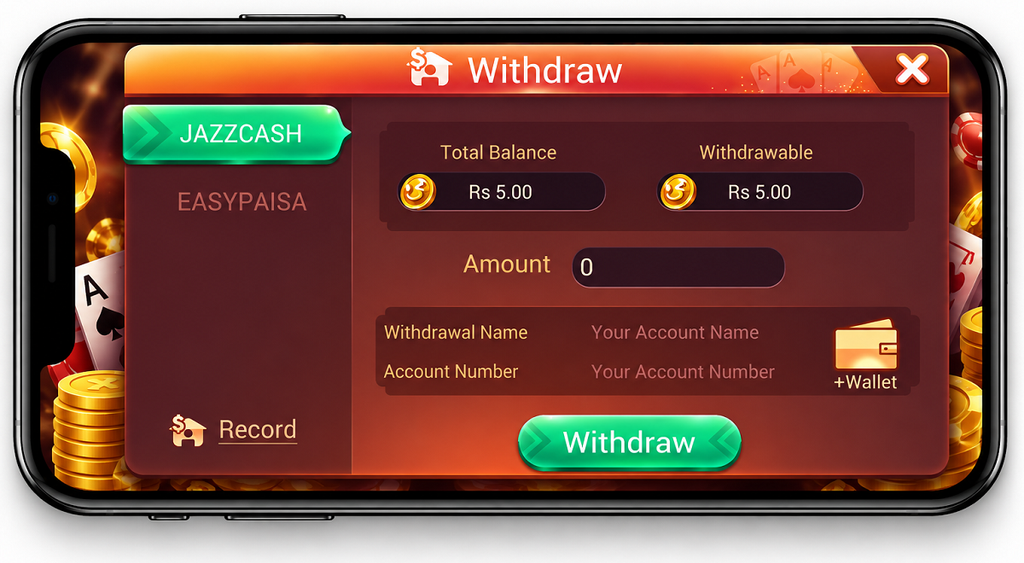
Select the wallet you want to use for receiving the withdrawal.
Review the Total Balance and Withdrawable amounts shown on the screen before entering your request.
Enter the amount you want to withdraw while following the options and conditions currently displayed inside the app.
Fill in the Withdrawal Name and Account Number requested on the screen. Check the information carefully before continuing.
Review the selected wallet, amount, name, and account number, then tap Withdraw to submit the request.
Total Balance vs Withdrawable Balance
The withdrawal screen displays Total Balance and Withdrawable as separate amounts. They may not always show the same figure, so check the Withdrawable amount when preparing a withdrawal request.
This is the balance currently displayed for your game account.
This is the amount the withdrawal screen currently shows as available for withdrawal.
If part of the Total Balance is not shown as Withdrawable, follow the information and conditions currently displayed inside the app rather than assuming that the complete balance can be withdrawn.
Withdraw Through JazzCash & Easypaisa
JazzCash and Easypaisa are shown as wallet options on the withdrawal screen. Choose the wallet where you want to receive the payment and enter the information requested by the app.
Select JazzCash, enter the withdrawal amount, Withdrawal Name, and Account Number, then review the details before submitting.
Select Easypaisa and enter the requested withdrawal and account information. Check the wallet number carefully before continuing.
Make sure the selected wallet and account details are correct before tapping Withdraw. After submitting the request, its transaction information can be checked from the Record option inside the app.
Check Your Withdrawal in Record
After submitting a withdrawal, open the Record option inside the app. This is the first place to check when you want to confirm the transaction or when the withdrawal has not reached your wallet.
Find the withdrawal you recently submitted and check the information shown for that transaction.
Review the current status before submitting another withdrawal or reporting a payment problem.
If there is a problem, take a screenshot of the relevant Record so you have the transaction information available when contacting support.
Withdrawal Returned to Game Balance
Sometimes a submitted withdrawal may not complete and the coins can appear back in the game balance. If this happens, first check Record and confirm that the returned amount is visible in your account.
A returned withdrawal does not always show the exact reason. Temporary service load, payment processing, or the submitted request may be involved, so avoid repeatedly sending the same request while its status is unclear.
If you are making your first withdrawal, starting with a smaller amount can be a practical way to check that your JazzCash or Easypaisa details and the withdrawal process are working as expected.
If coins return after a withdrawal, check your balance and Record before trying again. If the request is returned repeatedly, keep a screenshot of the relevant transaction and contact the in-app support team.
Withdrawal Pending or Failed
If a withdrawal remains pending or shows as failed, check its Record before taking further action. Do not keep submitting the same withdrawal while the previous request is still unresolved.
Check the transaction status in Record.
Confirm the JazzCash or Easypaisa account number used for the request.
Check whether the coins have returned to your game balance after a failed request.
If the status is still unclear, allow some time and check the same transaction again before making another request.
Withdrawal Completed but Money Not Received
If the app shows the withdrawal as completed but the expected payment has not appeared in your JazzCash or Easypaisa wallet, compare the app Record with your wallet transaction history.
Keep the withdrawal amount, wallet number, transaction information, and a screenshot of the relevant Record. If the payment is still missing, use the in-app support option for account-specific help. If the issue appears to be on the wallet side, you may also need to contact the relevant wallet support service.
Withdrawal Safety Checks
Check the important withdrawal information before you submit a request. A few simple checks can reduce mistakes and make it easier to track the transaction if a problem occurs.
Confirm whether JazzCash or Easypaisa is selected before entering the account details.
Check the Withdrawal Name, Account Number, and withdrawal amount before tapping Withdraw.
For a first withdrawal, consider testing the process with a smaller amount before requesting a larger withdrawal.
After submitting, check Record before trying another withdrawal if the first request has not been resolved.
For information about how this website handles data, you can also read our Privacy Policy .
Contact Support About a Withdrawal Problem
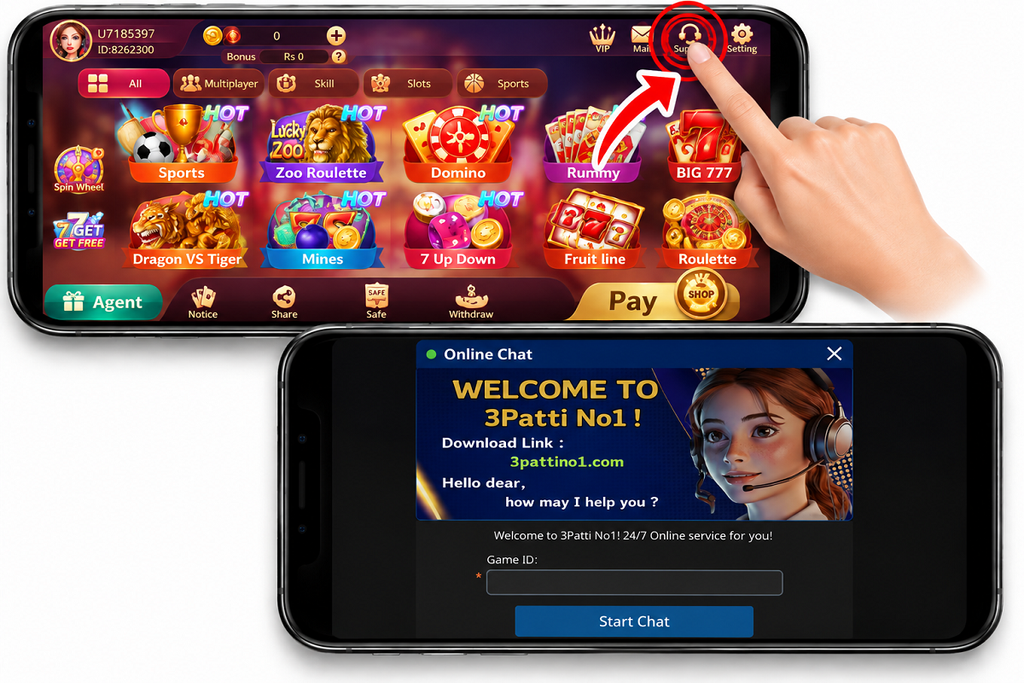
The app includes a Support option that opens Online Chat. If a withdrawal is returned repeatedly, remains unresolved, or is shown as completed without reaching your wallet, you can use this option to report the transaction.
Before starting the chat, keep the useful transaction information ready:
Never send your JazzCash or Easypaisa PIN, OTP, wallet password, or app login password when asking for help with a withdrawal.
Before Making Another Withdrawal
Check the result of your previous withdrawal before submitting another request. This is especially important when a transaction is still pending, has been returned, or its status is unclear.
Open Record and check the status of the previous withdrawal.
Check whether the payment has reached your JazzCash or Easypaisa wallet.
If the withdrawal was returned, confirm that the coins have appeared back in your game balance.
Recheck the wallet name, account number, and withdrawal amount before trying again.
Keeping each request separate makes it easier to identify the correct transaction if you later need help from the in-app support team.
Frequently Asked Questions
Can I withdraw through JazzCash or Easypaisa?
JazzCash and Easypaisa are shown as withdrawal options on the screen we reviewed. Check the options currently available inside the app when submitting your withdrawal.
Where can I check my withdrawal status?
Open Record inside the app and find the relevant withdrawal transaction. Check its information before submitting another request.
Why is Total Balance different from Withdrawable?
The withdrawal screen displays Total Balance and Withdrawable separately. Use the Withdrawable figure when checking how much is currently available for a withdrawal and follow any conditions shown inside the app.
Why did my withdrawal return to my game balance?
A returned withdrawal may place the coins back in the game balance. The exact reason may not always be clear from the screen. Check Record and your balance first. If it happens repeatedly, keep a screenshot of the transaction and contact in-app support.
Should I start with a smaller withdrawal?
For a first withdrawal, using a smaller amount can be a practical way to confirm that the wallet details and withdrawal process are working as expected before requesting a larger amount.
What if my withdrawal is completed but money is not in my wallet?
Compare the withdrawal in Record with your JazzCash or Easypaisa transaction history. If the app shows it as completed but the expected payment is still missing, keep a screenshot and contact the in-app support team for account-specific help.
Should I submit another withdrawal while one is pending?
Check the existing request first. Repeated withdrawal requests can make it harder to identify which transaction is unresolved. Wait until its status becomes clear or contact support if necessary.
What details should I never share with support?
Do not share your JazzCash or Easypaisa PIN, OTP, wallet password, or app login password. Transaction details and the relevant Record screenshot should normally be enough to identify the withdrawal you are asking about.
Final Check Before You Withdraw
Take a moment to review the withdrawal details before submitting the request. After submission, keep the transaction Record until the withdrawal has been resolved.
Check the Withdrawable amount.
Select the correct JazzCash or Easypaisa wallet.
Verify the Withdrawal Name and Account Number.
Check Record after submitting the request.
If a transaction is returned, delayed, or otherwise unclear, compare the app Record with your wallet history before trying again. Use in-app support when account-specific assistance is required.
For general information about the limits of the guidance provided on this website, read our Disclaimer.